Title here
Summary here
April 20, 2026 in Releases by David Wiseman3 minutes

Deadlock reporting available on the Performance tab, new notification channel groups, improved alert filters, and other improvements.
Deadlocks occur when two or more processes each hold locks the others need, causing them to wait indefinitely. SQL Server detects these cycles and chooses a deadlock victim, rolling back that transaction (error number 1205). Applications should handle the 1205 error and retry or otherwise recover gracefully.
A single deadlock may be harmless depending on the application’s retry behavior. However, frequent deadlocks can increase resource usage and cause repeated work as transactions are rolled back and retried. It’s important to know when deadlocks occur and how they affect your workload. For more information on deadlocks and how to minimize them, see Microsoft: Deadlocks.
Deadlocks are now surfaced in the Blocking section of the Performance tab, so you can spot and investigate them more quickly.
Locks\Number of Deadlocks/sec performance counter and converts it into a discrete deadlock count.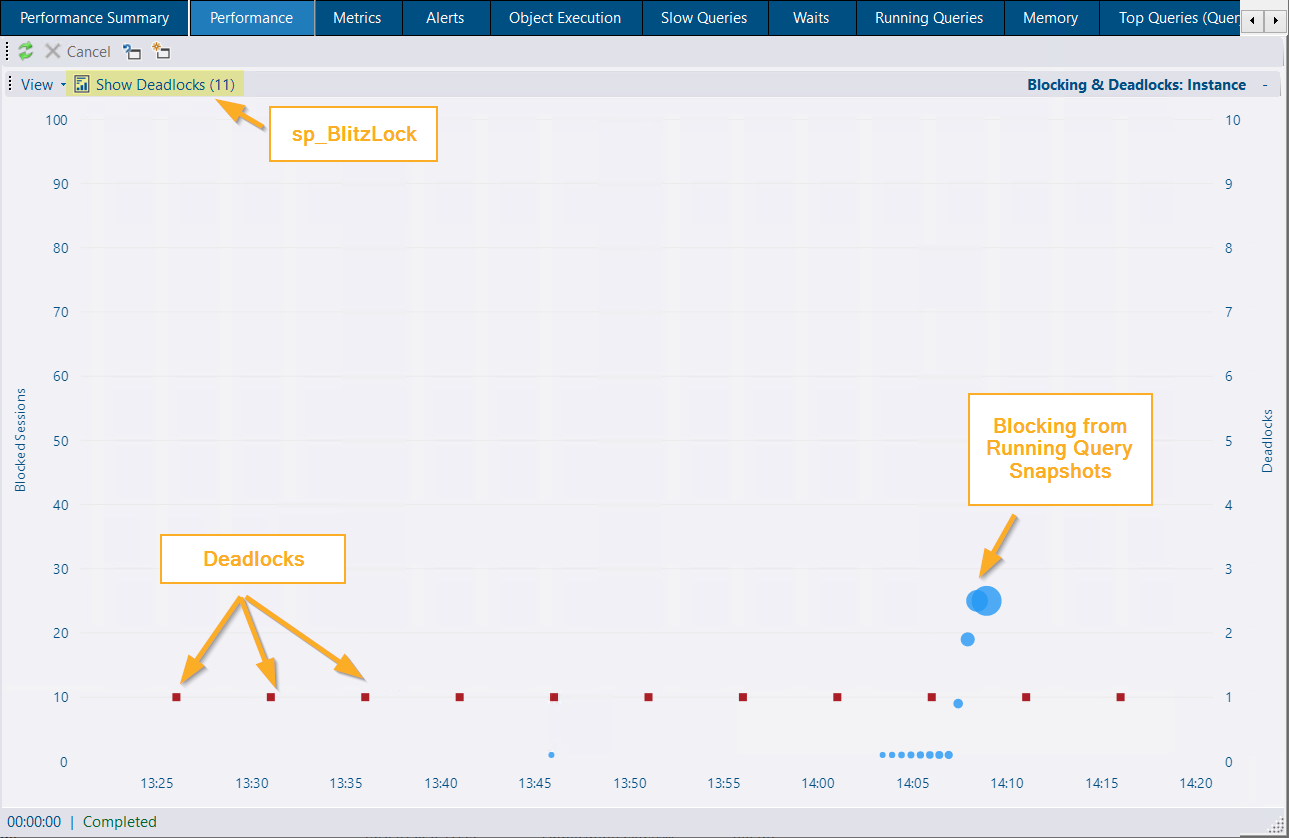
Click the Show Deadlocks button to view deadlock details for the selected time range. This triggers the messaging feature to execute sp_BlitzLock on the monitored instance and retrieve the details and deadlock graph from the system_health extended event.
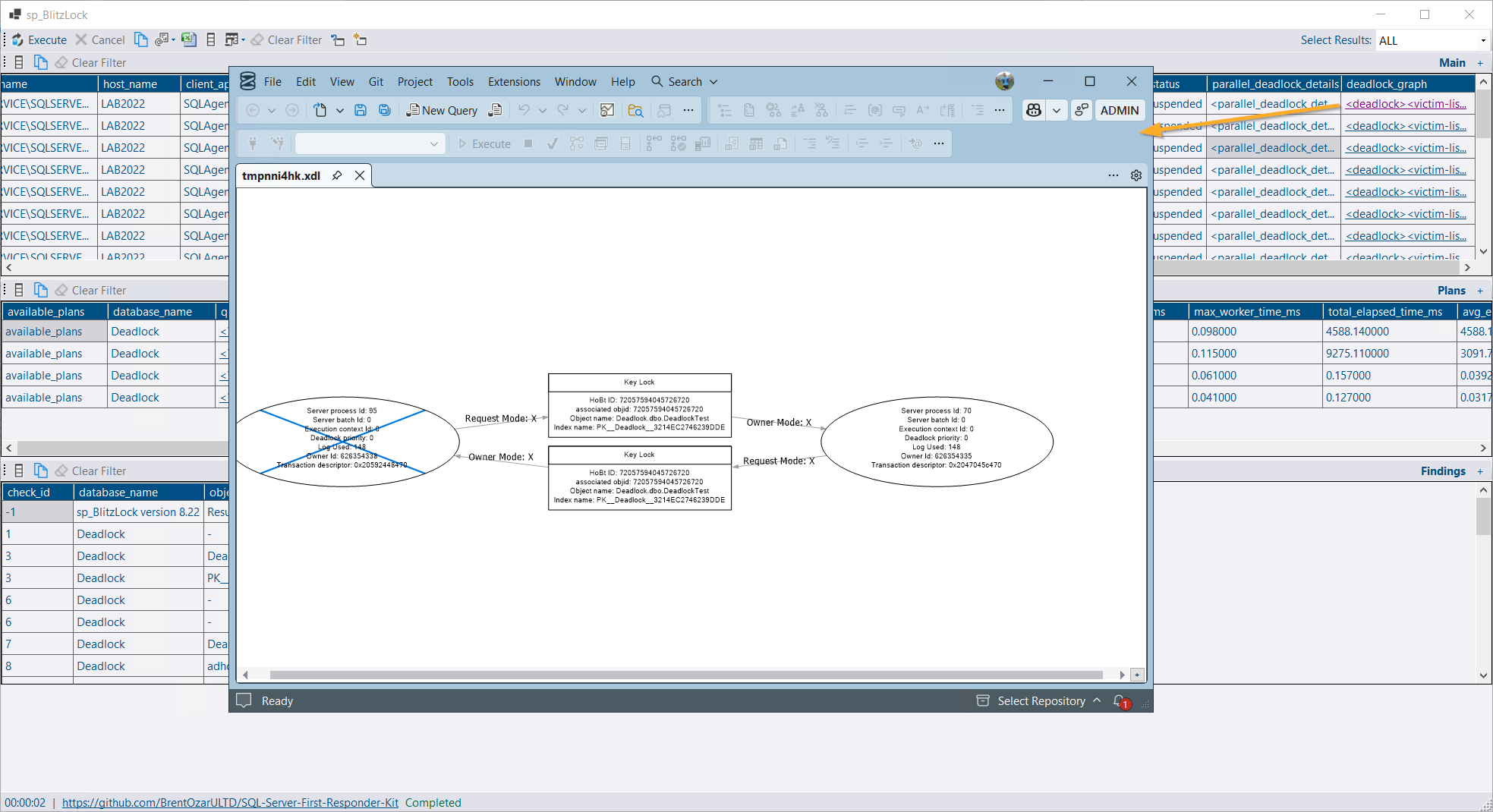
Deadlocks are shown by default when detected. If you’ve customized performance counters, make sure the following line appears in your PerformanceCountersCustom.xml file:
<Counter object_name="Locks" counter_name="Number of Deadlocks/sec" instance_name="_Total" />Users need the CommunityScripts and Messaging roles in the repository database to run sp_BlitzLock. The procedure must be deployed to monitored instances and enabled in the service configuration tool. The DBA Dash service account also needs permission to execute the procedure. See community tools setup for details.
Notification channel groups let you target alert rules to specific sets of notification channels (email, Google Chat, Slack, PagerDuty, etc.). All existing channels and rules are placed into a default group automatically.
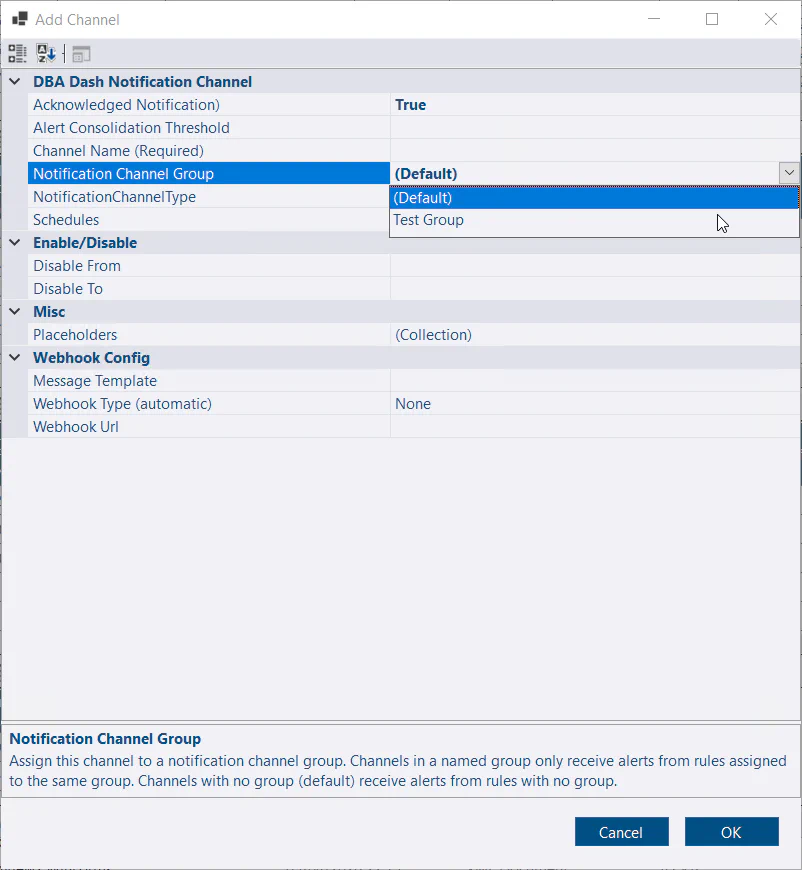 The notification channel will only receive alerts associated with the new group.
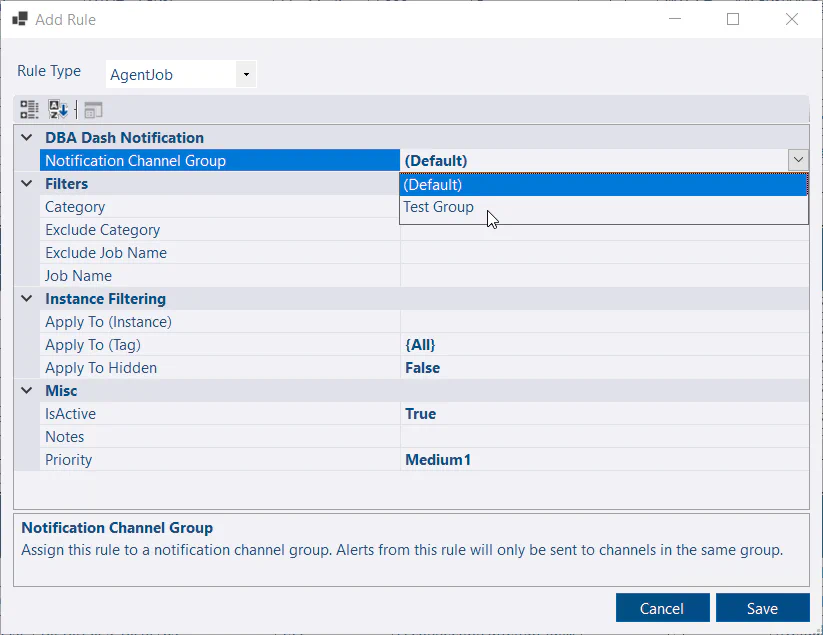 The new alert rule will only send notifications to channels associated with the new group.
You can apply schedule filters to notification channels to control which alert notifications a channel receives based on:
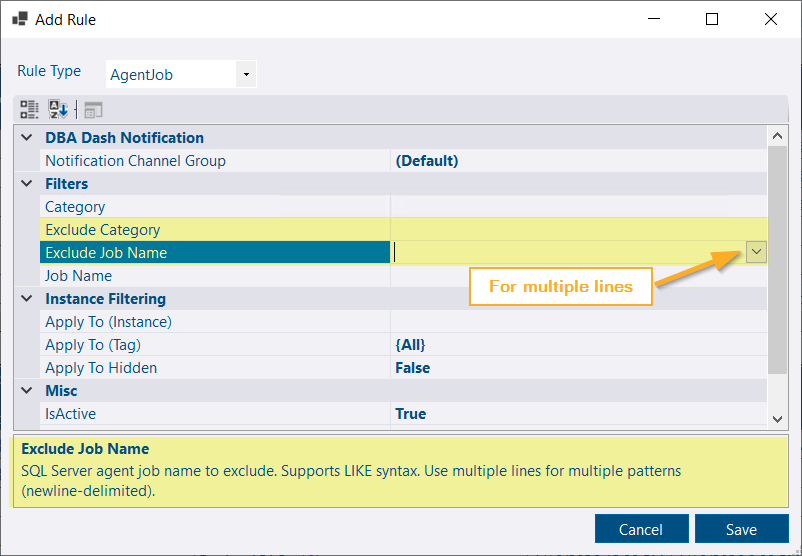
Agent job alerts can now use exclusion filters for job name and category. You can specify multiple filters — enter each filter on a new line (use the down).
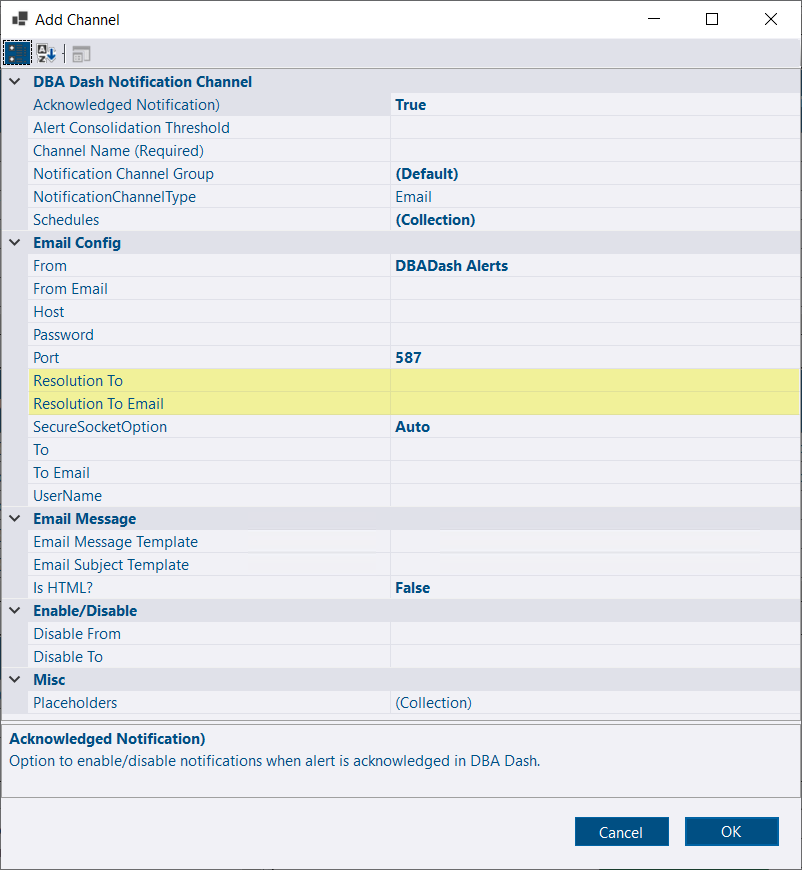
This pull request by goldenjacob adds the option to use a separate email address for resolution notifications. This can prevent resolved alerts creating unnecessary tickets in external systems.
See the 4.8.0 release notes for a full list of fixes and improvements.