Title here
Summary here
The AI Assistant analyses your DBA Dash repository data and answers natural-language questions about alerts, performance, waits, backups, blocking, slow queries, and more.
Two components work together:
| Component | Role |
|---|---|
DBADashAI (DBADashAI.dll) | ASP.NET Core web service. Runs SQL tools against the repository DB, optionally calls an LLM to summarise findings, and exposes /api/ai/* endpoints. |
| DBADash GUI | Discovers the AI service, calls the API, and renders the response in the AI Assistant tab. |
Use dotnet --list-runtimes to check installed versions.
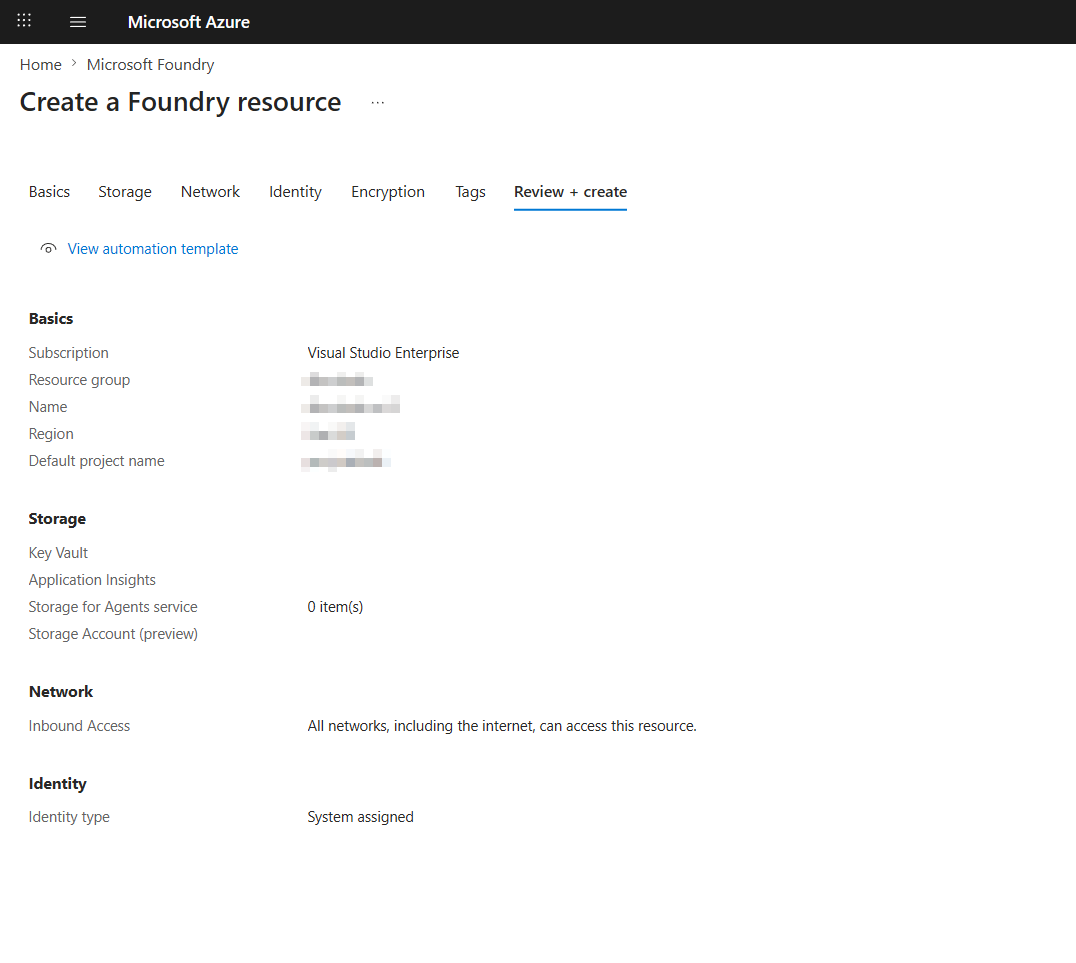
gpt-5.4-mini.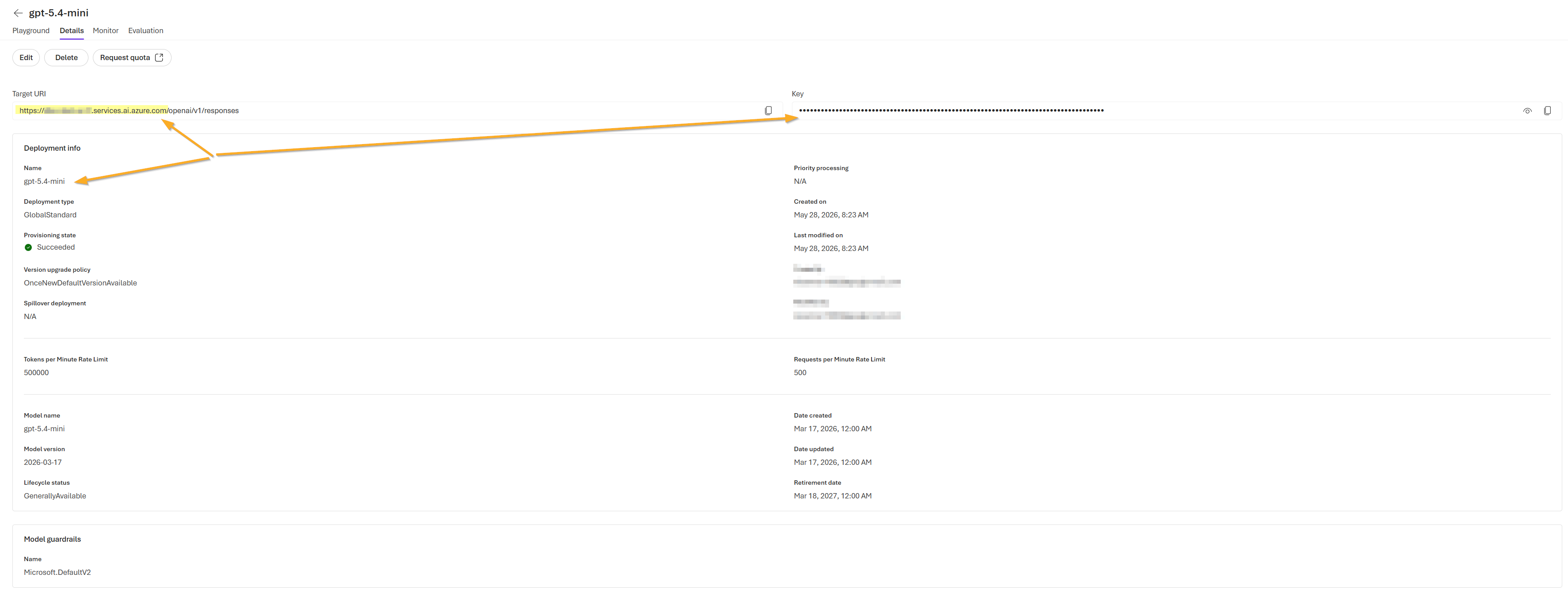
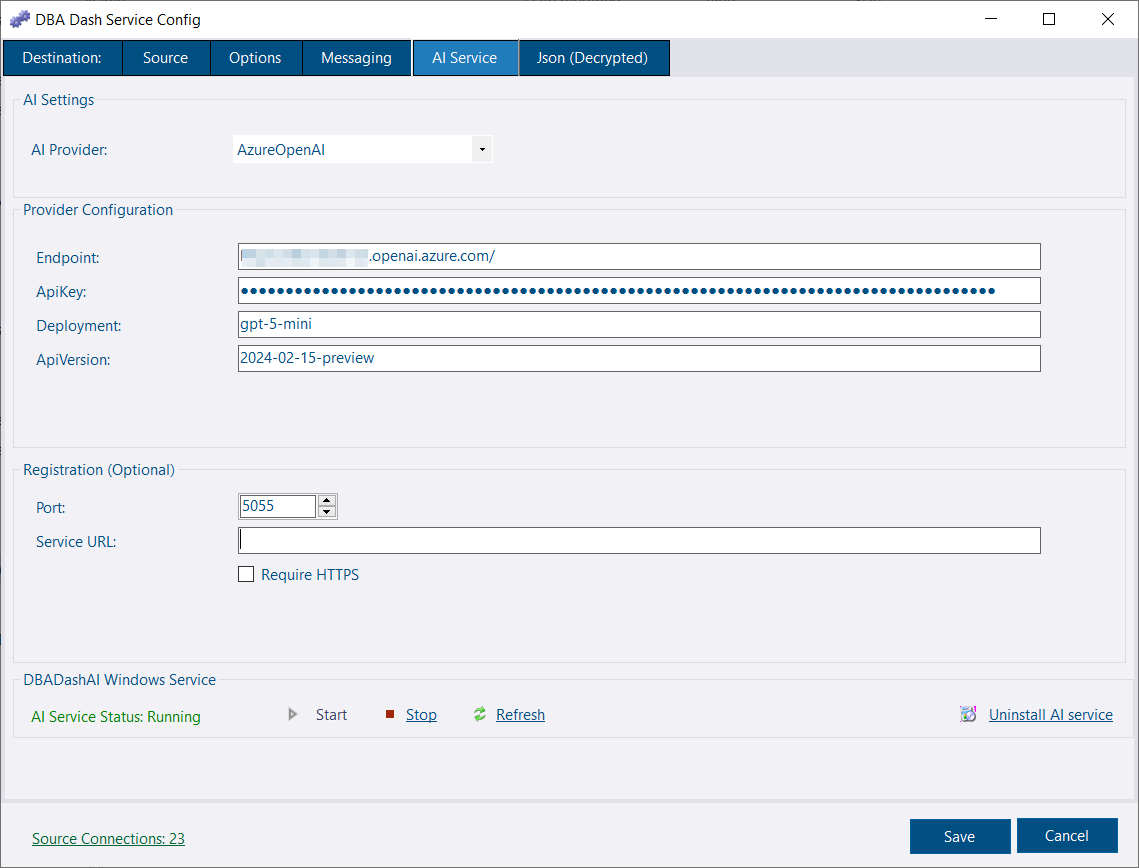
/openai/v1/responses, e.g., https://****.services.ai.azure.comgpt-5.4-mini2024-12-01-previewNote
The service will read the repository connection string from ServiceConfig.json. If the config file is encrypted, use the same account as the DBA Dash service to allow decryption, or see Repository connection string.
appsettings.local.json file which will override default settings from the appsettings.json file (overwritten on upgrade).Run DBADashAI on the same machine as the GUI. It binds to localhost only and requires no authentication — the loopback interface is the security boundary.
appsettings.local.json — leave Registration:ServiceUrl empty:
{
  "Registration": {
    "ServiceUrl": "",
    "Port": 5055
  }
}Deploy DBADashAI on a central server accessible to all GUI clients. Set Registration:ServiceUrl to the URL that clients will connect to. The service binds to all interfaces, registers that URL in the repository database, and enforces API key authentication.
appsettings.local.json:
{
  "Registration": {
    "ServiceUrl": "https://aiserver.corp.com",
    "Port": 5055
  },
  "Security": {
    "Enabled": true,
    "RequireHttps": true
  }
}
GUI clients discover the URL and API key automatically from the repository database — no client-side configuration needed.
appsettings.local.json)All AI service configuration lives in appsettings.local.json in the DBADashAI folder. ServiceConfig.json is not used by the AI service except to inherit the repository connection string when they are co-located.
Required. Tells the AI service which DBA Dash database to query.
{
  "ConnectionStrings": {
    "Repository": "Server=sql-server;Database=DBADashDB;Integrated Security=true;Encrypt=true;"
  }
}
If DBADashAI is deployed in the same folder as the collection service, this is inherited automatically from ServiceConfig.json and does not need to be set here.
At least one provider must be configured for the LLM summary to work. Without a provider the service still runs — tool data is returned but the summary field will be empty.
{
  "AI": { "Provider": "AzureOpenAI" },
  "AzureOpenAI": {
    "Endpoint": "https://<resource>.openai.azure.com",
    "ApiKey": "<key>",
    "Deployment": "<deployment-name>",
    "ApiVersion": "2024-12-01-preview"
  }
}{
"AI": { "Provider": "Anthropic" },
"Anthropic": {
"BaseUrl": "https://api.anthropic.com",
"ApiKey": "<key>",
"Model": "claude-3-5-sonnet-20241022",
"Version": "2023-06-01",
"MaxTokens": 1024
}
}For Anthropic via Azure Foundry, set BaseUrl to the base Foundry URL (ending in /anthropic/):
{
  "Anthropic": {
    "BaseUrl": "https://<resource>.services.ai.azure.com/anthropic/",
    "ApiKey": "<foundry-api-key>",
    "Model": "<deployment-name>"
  }
}
If AI:Provider is not set, the service auto-selects the first fully-configured provider in the order: AzureOpenAI → Anthropic.
Runs against a local or self-hosted Ollama server instead of a hosted LLM. Unlike AzureOpenAI and Anthropic, Ollama is never auto-selected - set AI:Provider explicitly.
{
  "AI": { "Provider": "Ollama" },
  "Ollama": {
    "BaseUrl": "http://localhost:11434",
    "ApiKey": "",
    "Model": "<model-name>",
    "ContextLength": 32768,
    "MaxTokens": "",
    "TimeoutSeconds": 240
  }
}| Key | Description |
|---|---|
BaseUrl | URL of the Ollama server. |
ApiKey | Optional - only needed if the server requires a bearer token (e.g. behind a reverse proxy). |
Model | Default model to use, e.g. llama3.1. Must already be pulled on the server. |
ContextLength | Context window to request, in tokens. |
MaxTokens | Optional cap on response length. Leave blank to use Ollama’s default. |
TimeoutSeconds | How long the service waits for a response before reporting a timeout. The GUI’s own wait is a fixed 300 seconds, so keep this lower so the service times out first and can report the reason. |
GET /api/ai/models lists the models currently pulled on the Ollama server, which populate the Model menu in the plan and deadlock viewers.
{
  "Registration": {
    "ServiceUrl": "",
    "Port": 5055
  }
}| Key | Description |
|---|---|
ServiceUrl | The URL registered in the repository DB for GUI discovery. Empty = local mode (loopback binding, no auth, no DB registration). |
Port | Port to listen on. Used in both modes. |
Only applies in shared/repository mode (ServiceUrl set). In local mode, auth is automatically disabled.
{
  "Security": {
    "Enabled": true,
    "RequireHttps": false,
    "KeyRotationDays": 30,
    "KeyGracePeriodHours": 24
  }
}| Key | Description |
|---|---|
Enabled | Enables authentication in shared/repository mode. API key authentication is the current authentication model. |
RequireHttps | Redirects HTTP requests to HTTPS. Strongly recommended in shared/repository mode. |
KeyRotationDays | Automatically rotates the shared API key after the specified number of days. Set 0 or less to disable rotation. |
KeyGracePeriodHours | Grace period for previous keys during rotation. |
⚠️ HTTPS in shared mode — Strongly recommended. Without HTTPS, API keys are transmitted in plain text and can be intercepted on the network. Set RequireHttps: true and configure your binding via a reverse proxy (recommended) or Kestrel certificates. The health endpoint (/api/ai/health) is always unauthenticated for load-balancer probes.
{
  "Logging": {
    "LogLevel": {
      "Default": "Information",
      "Microsoft.AspNetCore": "Warning",
      "DBADashAI": "Information"
    }
  }
}Store secrets in Key Vault instead of appsettings.local.json. Use -- to represent hierarchy in secret names (e.g., AzureOpenAI--ApiKey).
{
  "KeyVault": {
    "VaultUri": "https://<vault>.vault.azure.net/",
    "ManagedIdentityClientId": ""
  }
}Use the AI Service tab in the DBADashServiceConfig tool, or run sc.exe manually:
sc.exe create DBADashAI `
    binPath="\"C:\Program Files\dotnet\dotnet.exe\" \"C:\DBADash\DBADashAI\DBADashAI.dll\"" `
    start= auto
sc.exe start DBADashAI
Configure the service by editing appsettings.local.json in the DBADashAI folder before or after installation. Restart the service to apply changes.
The GUI uses the following priority order to locate the AI service:
http://localhost:5055 (or the URL in user settings) first. If reachable, uses it with no authentication. The health endpoint returns a repository fingerprint; if the local service is pointed at a different database than the GUI is connected to, a warning is shown and the tab is disabled.AI.ServiceConfig for the shared service URL and API key registered by the central deployment.If neither source is available the AI Assistant tab is hidden.
Role requirement — Even when a service is reachable, the AI Assistant tab is only shown to users who are admins (db_owner or sysadmin on the repository database) or members of the AIUser role. If you can reach the service but the tab is still missing, verify that your repository login has one of these roles assigned.
The AI service is also used by the AI Analysis tab in the deadlock viewer and the query plan viewer. Nothing is sent until you press Submit for analysis, and the exact request is shown first so you can review it.
Both viewers support follow-up questions. Where each part of the conversation is stored depends on who it belongs to:
| Part | Stored | Visible to |
|---|---|---|
| Initial analysis | Repository database | Other DBA Dash users - so the same deadlock or query doesn’t need to be analysed twice |
| Follow-up questions and answers | Locally, in %LOCALAPPDATA%\DBADash\AiConversations, protected with Windows DPAPI | You only |
Keeping follow-ups local means no one else can read them - including administrators of the repository database - without access to your Windows profile. The trade-off is that they don’t roam between machines, and are lost if the machine is rebuilt.
Select Options > My AI conversations… on the AI Analysis tab to Export or Import your conversations. An export is plain JSON unless you provide a passphrase to protect it. Importing merges with the conversations already on the machine.
| Endpoint | Auth | Description |
|---|---|---|
GET /api/ai/health | None | Service health + repository fingerprint |
GET /api/ai/diagnostics | Required | Configuration summary (keys redacted) |
GET /api/ai/tools | Required | Available tools and metadata |
GET /api/ai/examples | Required | Example questions grouped by category |
GET /api/ai/models | Required | Available LLM models |
POST /api/ai/ask | Required | Ask a question |
POST /api/ai/proactive-digest | Required | Proactive risk digest |
POST /api/ai/feedback | Required | Submit helpful/not-helpful feedback |
GET /api/ai/feedback | Required | Recent feedback |
GET /api/ai/test-anthropic | Required | Test Anthropic provider connectivity and configuration |
The AI service writes detailed logs to DBADashAI-log-YYYYMMDD.txt files in the Logs folder located in the same directory as the service. Check these files first when diagnosing any issue — they capture startup errors, provider configuration problems, and request-level details that are not surfaced in the GUI.
Invoke-RestMethod http://localhost:5055/api/ai/healthAI.ServiceConfig exists and IsActive = 1 (heartbeat within 2 minutes)The local service’s ConnectionStrings:Repository points to a different database than the GUI is connected to. Either update the AI service connection string or switch the GUI to the matching repository.
The LLM provider is not configured or unreachable. Check AI:Provider and the corresponding provider section. Use GET /api/ai/diagnostics (authenticated) to inspect the resolved configuration.
Shared mode only. The GUI retrieves the API key from the database automatically. If it fails, check that AI.ServiceConfig has a valid key and the GUI has read access to that table.
Change Registration:Port in appsettings.local.json and restart. In local mode the GUI will probe http://localhost:{port} — update user settings in the GUI Options if using a non-default port.