Title here
Summary here
DBA Dash Visualizer is available starting from 4.20.1.
DBA Dash Visualizer is a small, standalone app containing the same viewers that are built into DBA Dash. It’s for when you have a plan or a deadlock graph and don’t have DBA Dash - no repository, service, SQL Server connection or monitored instance is needed.
.sqlplan) - see Query Plan Viewer..xdl) - see Deadlock Viewer.Several files open as tabs of one window, so they can be compared.
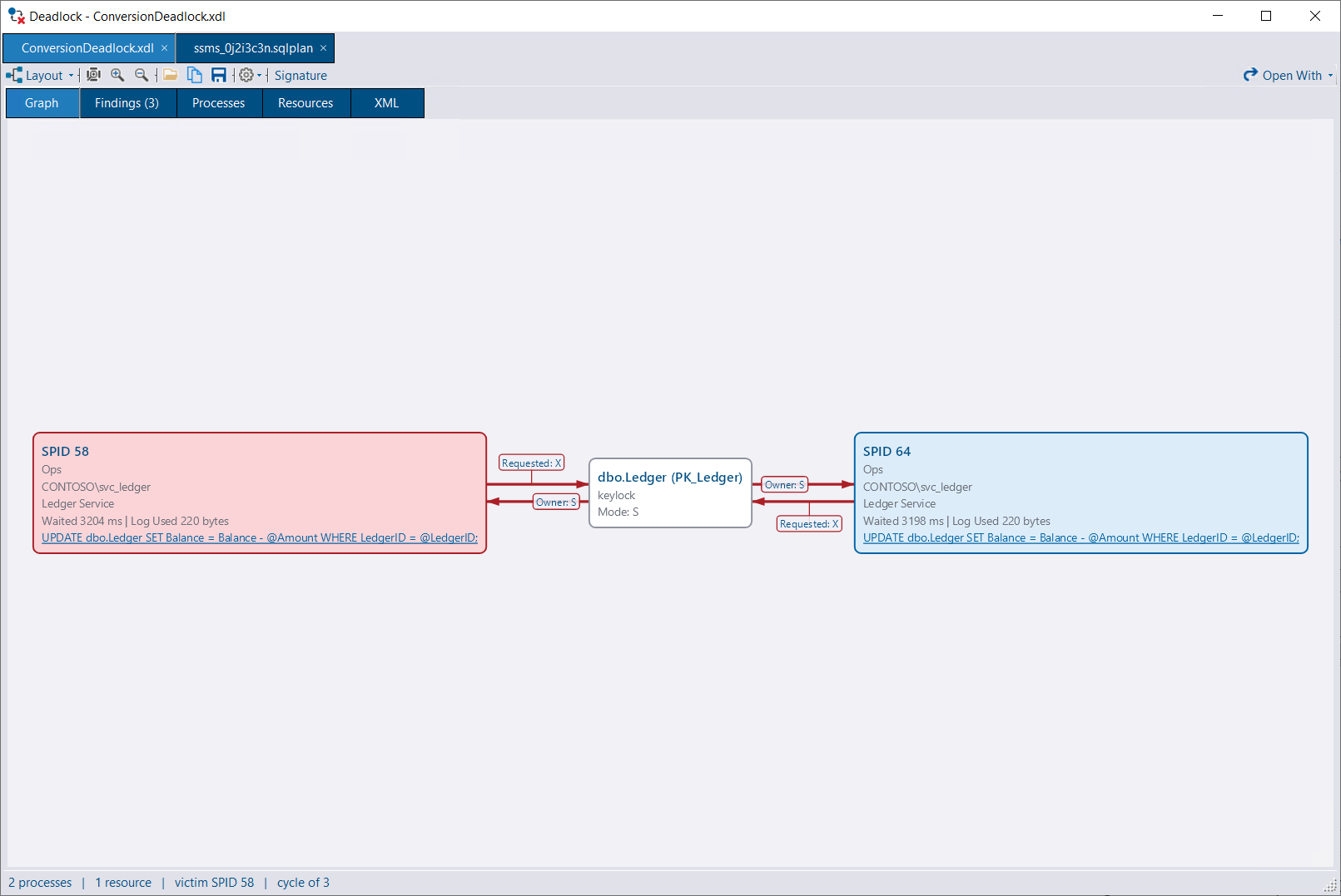
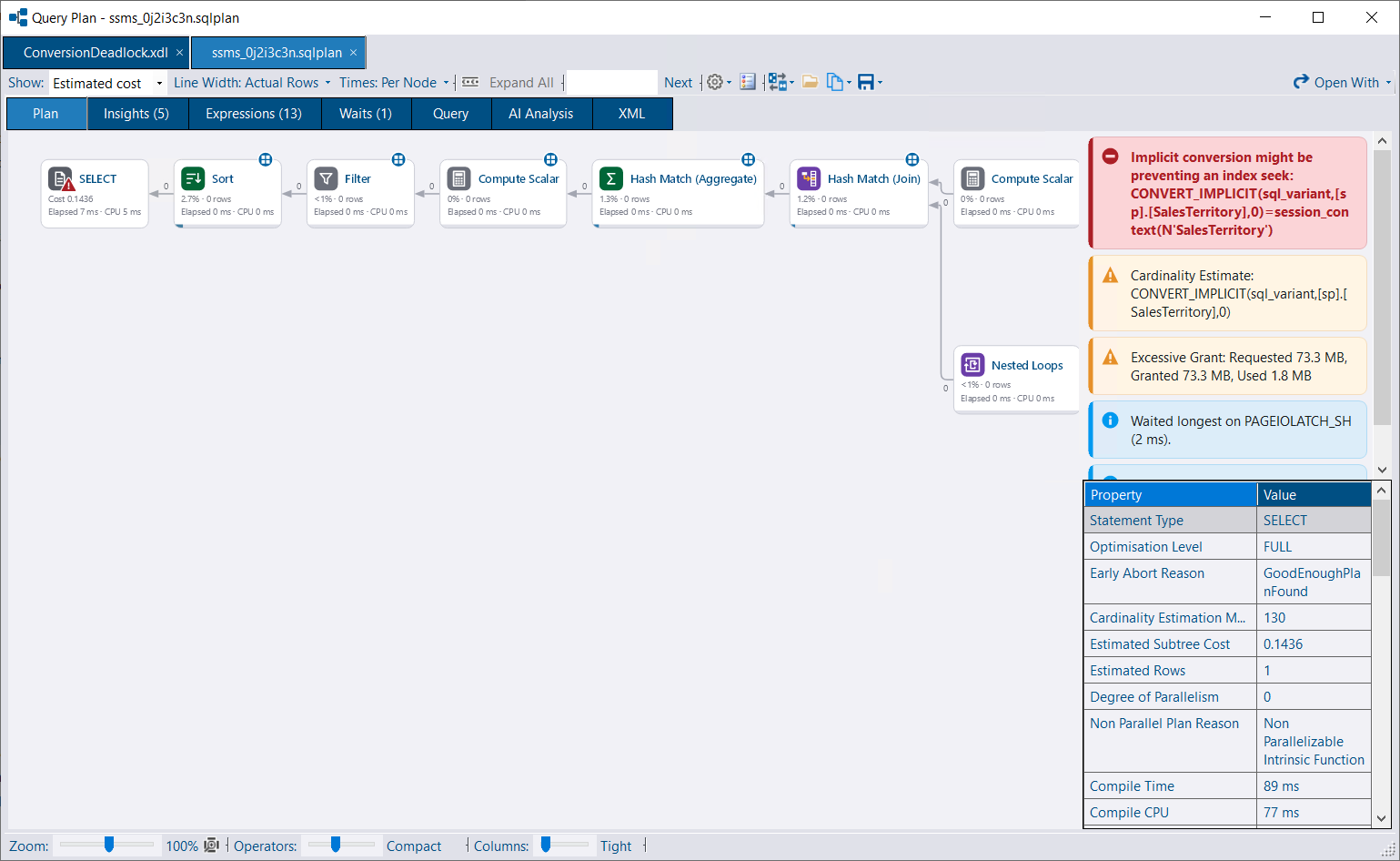
Features that need DBA Dash - AI analysis, collecting the current plan for a deadlocked statement from the instance, and Query Store lookups - aren’t available in the Visualizer.
Download from the latest release.
Run DBADash_Visualizer_Setup_<version>.exe. It installs in a few seconds for the current user only, so no administrator rights are required. There are no prompts to click through. It adds DBA Dash Visualizer to the Start menu and Installed apps, installs the .NET Desktop Runtime if needed, and updates itself.
Run DBADash_Visualizer_Setup_<version>.msi. It asks whether to install for you or for everyone, under Program Files. A silent install is per user unless ALLUSERS=1. An update of an install for everyone asks for administrator permission.
Extract DBADash_Visualizer_<version>.zip to a folder of your choice and run DBADashVisualizer.exe.
Run DBADashVisualizer.exe and choose a file, drag and drop files onto the window, or pass files on the command line:
DBADashVisualizer.exe MyPlan.sqlplan MyDeadlock.xdlFiles opened from Explorer, several at once, all open in the one running copy.
From the Settings menu of either viewer, select Open .sqlplan Files with DBA Dash Visualizer (or the .xdl equivalent) to add it to Explorer’s Open with menu. Windows doesn’t let an app make itself the default - select Make DBA Dash Visualizer the Default to go to Settings > Default apps and choose it there.
From the command line, use --RegisterFileAssociation and --UnregisterFileAssociation. This is per user and doesn’t need elevation.
The DBA Dash GUI registers its own entry for the same file types, and both can be offered side by side.
The setup program adds a Start menu entry. The zip doesn’t - select Show in Start Menu from the Settings menu, or run DBADashVisualizer.exe --CreateStartMenuShortcut. Use --RemoveStartMenuShortcut to remove it.
Settings are stored per user in %LOCALAPPDATA%\DBADash\Visualizer\settings.json. Most are set from the viewers’ Settings menus. Two are edited by hand:
| Setting | Values | Default |
|---|---|---|
Theme | Default, White, Dark | Follows the Windows light/dark app setting |
CheckForUpdates | true, false | true (also set from About) |
Logs are written to %LOCALAPPDATA%\DBADash\Logs\DBADashVisualizer-<date>.log.
At most once a day, a few seconds after it starts, the Visualizer checks GitHub for a newer release.
Skip This Version stops it mentioning that version again. Turn the check off in About, or check now with Check for Updates in the Settings menu.
DBADashVisualizer.exe --UnregisterFileAssociation and --RemoveStartMenuShortcut if you used them, then delete the folder.Delete %LOCALAPPDATA%\DBADash\Visualizer to remove the settings.